
30 Tiny Privacy and Security Habits: One a Day for a Safer Month
Most online privacy tips fail for the same reason: they ask you to change everything at once. Nobody rebuilds their whole digital life on a Tuesday night.
So let's not. Here are 30 tiny privacy and security habits, one a day, most of them under 5 minutes. It's the easiest way we know to protect your privacy online without giving up a weekend. Start today, or any day. By Day 30, your accounts, devices and browser will be in far better shape than most people's, and you won't have had a single "security weekend."
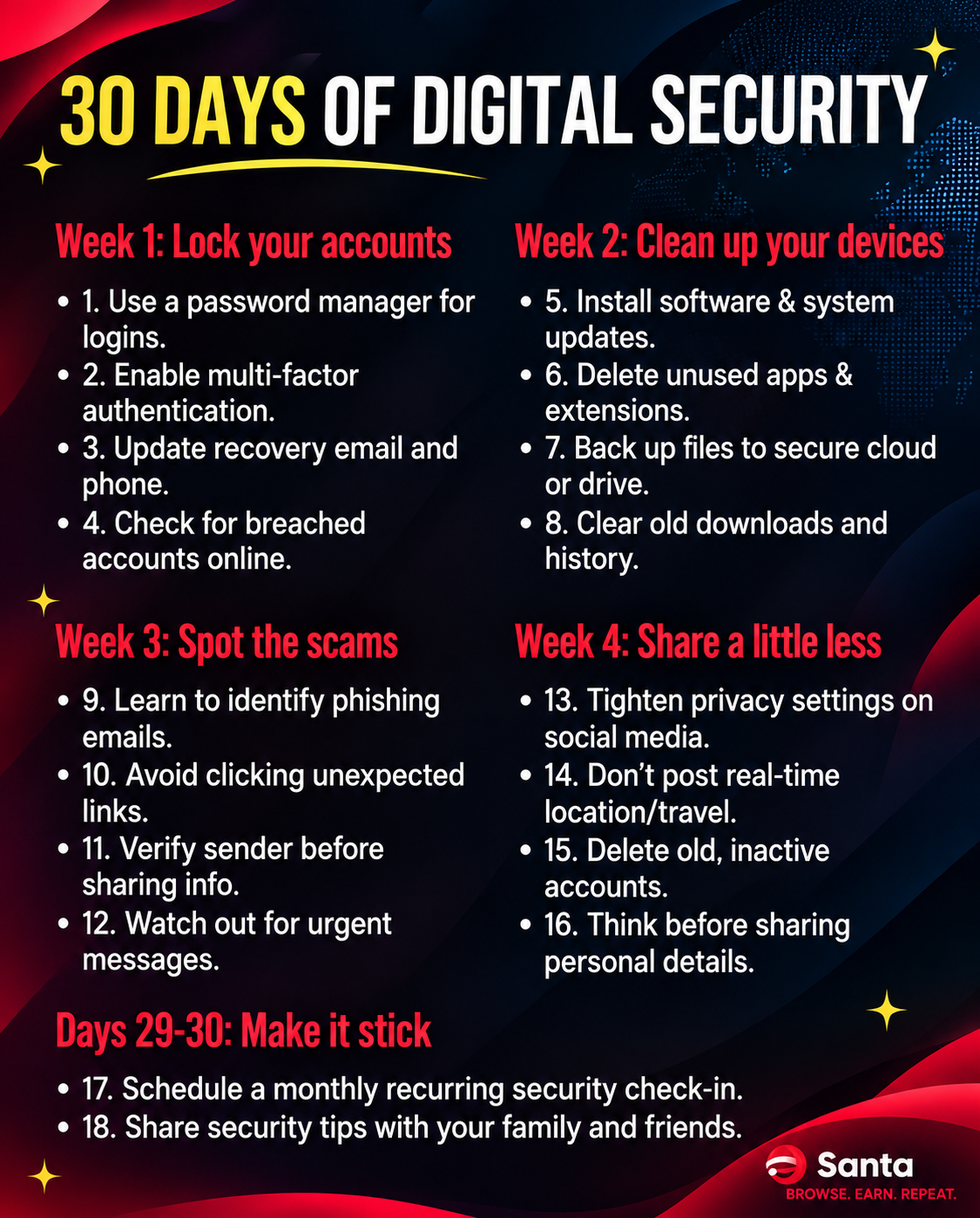
Week 1: Lock Your Accounts
Start here. Your accounts, especially your email, are the keys to everything else.
Day 1: Update your browser. Open its "About" page and let it check for updates. Restart it if it asks. Updates fix security holes that attackers already know about.
Day 2: Update your phone and computer. While you're there, turn on automatic updates so you never have to think about it again.
Day 3: Check whether your email has been in a data breach. Enter it on Have I Been Pwned (haveibeenpwned.com), a free service that lists more than 17 billion breached email addresses. If yours shows up, Day 5 just became urgent.
Day 4: Turn on two-step sign-in for your main email. This is the most important habit on the list. Your email can reset every other password you have. In a Microsoft study of business accounts, multi-factor sign-in reduced the risk of an account being taken over by 99.22%.
Day 5: Change your most reused password. You know the one. Credential abuse, meaning attackers signing in with stolen or guessed passwords, was the most common way into breaches in Verizon's 2025 Data Breach Investigations Report, at 22%. Give that account a long, new password that you don't use anywhere else.
Day 6: Start using a password manager. Use your browser's built-in one or a standalone app. Either way, you only have to remember one strong password, and every account gets its own.
Day 7: Add two-step sign-in to your bank and main social accounts. Where you get a choice, an authenticator app or a passkey is stronger than a text message code.
Week 2: Clean Up Your Browser and Devices
Day 8: Delete extensions you haven't used in a month. Extensions can see a lot of what you do online, and some have been hijacked through bad updates. Fewer is safer. Step 3 /blog/how-to-switch-browsers
Day 9: Review site permissions. Open your browser's site settings and check which sites can use your camera, microphone and location. Remove any you don't recognize.
Day 10: Turn off notification requests from sites. Most "Allow notifications?" pop-ups are noise, and fake ones are a common scam trick. Turn the requests off across the board, then allow only the few sites you actually want to hear from.
Day 11: Clear cookies for sites you no longer visit. It won't solve everything, but it removes old logins and stored data you've forgotten about. What Is Browser Fingerprinting?
Day 12: Set a strong screen lock. Use at least a 6-digit PIN, or a longer passcode, plus your fingerprint or face. A phone that unlocks with "1234" doesn't really have a lock.
Day 13: Hide message previews on your lock screen. One-time codes and private messages often show up in full on a locked phone. Set previews to show only when your phone is unlocked.
Day 14: Check which apps can see your location. Switch apps to "only while using" or turn location off for anything that doesn't need it. A flashlight app doesn't need to know where you live.
Week 3: Spot the Scams
Scams don't need to beat your security if they can talk you into opening the door. This week is about the door.
Day 15: Bookmark your bank and favorite shops. From now on, go to them through your bookmarks, not through links in emails or texts.
Day 16: Check the address before you tap. Hover over a link on a computer, or press and hold it on a phone, to see where it really goes. "your-bank.secure-login.co" is not your bank.
Day 17: Never share a one-time code. Not with "support," not with "the bank," not with anyone. Those codes are for you to type, never to read out.
Day 18: Agree on a family code word. Scammers can now copy a voice from a short clip. The FTC's advice: "Don't trust the voice. Call the person who supposedly contacted you and verify the story," using "a phone number you know is theirs." A family code word that only you know is a simple extra check.
Day 19: Read the sender's full email address. The display name can say anything. The address after it usually gives the game away.
Day 20: Never install an "update" from a pop-up. Real browser and system updates don't come from ads or pop-ups on random sites. If a page says your device is infected, close the tab. The First Banner Ad Turns 32?
Day 21: Turn on transaction alerts with your bank. A text or app alert for every payment means you spot a problem in minutes, not at the end of the month.
Week 4: Share a Little Less
Day 22: Review your social media privacy settings. Check who can see your posts, who can tag you, and whether people can find you by your phone number or email.
Day 23: Remove your birthday and phone number from public profiles. Both are common answers to security questions, and both help scammers sound convincing.
Day 24: Use a separate email for shopping and newsletters. Keep your main address for banks, work and people you know. If the shopping one leaks, it matters a lot less.
Day 25: Take the extra second on cookie banners. Look for "Reject all" or "Manage settings" before you hit the big bright button. From "Lo" to "Accept All"
Day 26: Check which apps can see your contacts and photos. Give access only to apps that need it. Many apps let you share selected photos instead of your whole library.
Day 27: Delete one account you no longer use. Old accounts still hold your data, and they're easy targets because nobody's watching them.
Day 28: Review apps connected to your main accounts. Every "Sign in with Google," "Sign in with Apple" or "Continue with Facebook" creates a link. Check the connected-apps list in each account and remove the ones you don't use anymore.
Days 29-30: Make It Stick
Day 29: Back up what you can't replace. Photos, documents, anything you'd hate to lose. A simple rule: three copies, on two different kinds of storage, with one kept somewhere else, such as a cloud backup.
Day 30: Make a public Wi-Fi plan. Turn off automatic joining for open networks. Avoid banking or shopping on Wi-Fi you don't control. And when you do need it, a VPN helps keep your connection private on public Wi-Fi.
That's it. 30 days, 30 habits, and a much safer setup.
How to Make the Habits Stick
- Pair it with something you already do. One habit with your morning coffee or on your commute.
- Do it with someone. Send a friend the day's habit and compare notes.
- Don't restart if you miss a day. Just do two the next day, or pick up where you left off.
- Repeat Week 1 every few months. Updates, passwords and two-step sign-in are worth a regular check-up.
Frequently Asked Questions
What are the most important online privacy and security tips?
If you only do three things, keep your browser and devices updated, turn on two-step sign-in for your email, and use a password manager so every account has its own password. Those three cover most of the everyday risk.
How long does this take?
Most habits take under 5 minutes. A few, like setting up a password manager or reviewing social media settings, can take 15 to 20 minutes the first time. After that, they take care of themselves.
Is two-step sign-in really worth the hassle?
Yes. It's the habit with the biggest payoff on this list. Even if someone gets your password, they still can't get in without your phone, your app or your passkey.
Where Santa Browser Fits
Day 1 on this list is your browser, because it's the window to everything else you do online. If you're due for a new one, Santa Browser is free, private and secure, built on Chromium and available on Windows, Mac, iPhone and Android. It brings your bookmarks and passwords across from your old browser, and it runs your Chrome Web Store extensions on desktop.
For Day 30: a built-in VPN that helps keep your connection private on public Wi-Fi is coming soon to Santa Browser, along with a built-in AI.