
How to Switch Browsers Without Losing Your Bookmarks, Passwords or Extensions

About two out of three people browse the web with Chrome. StatCounter put its share at 66.6% across desktop and mobile in September 2026. Many of those people have thought about trying something else and stopped at the same worry: "What happens to all my stuff?"
Years of bookmarks. Hundreds of saved passwords. The handful of extensions you rely on every day.
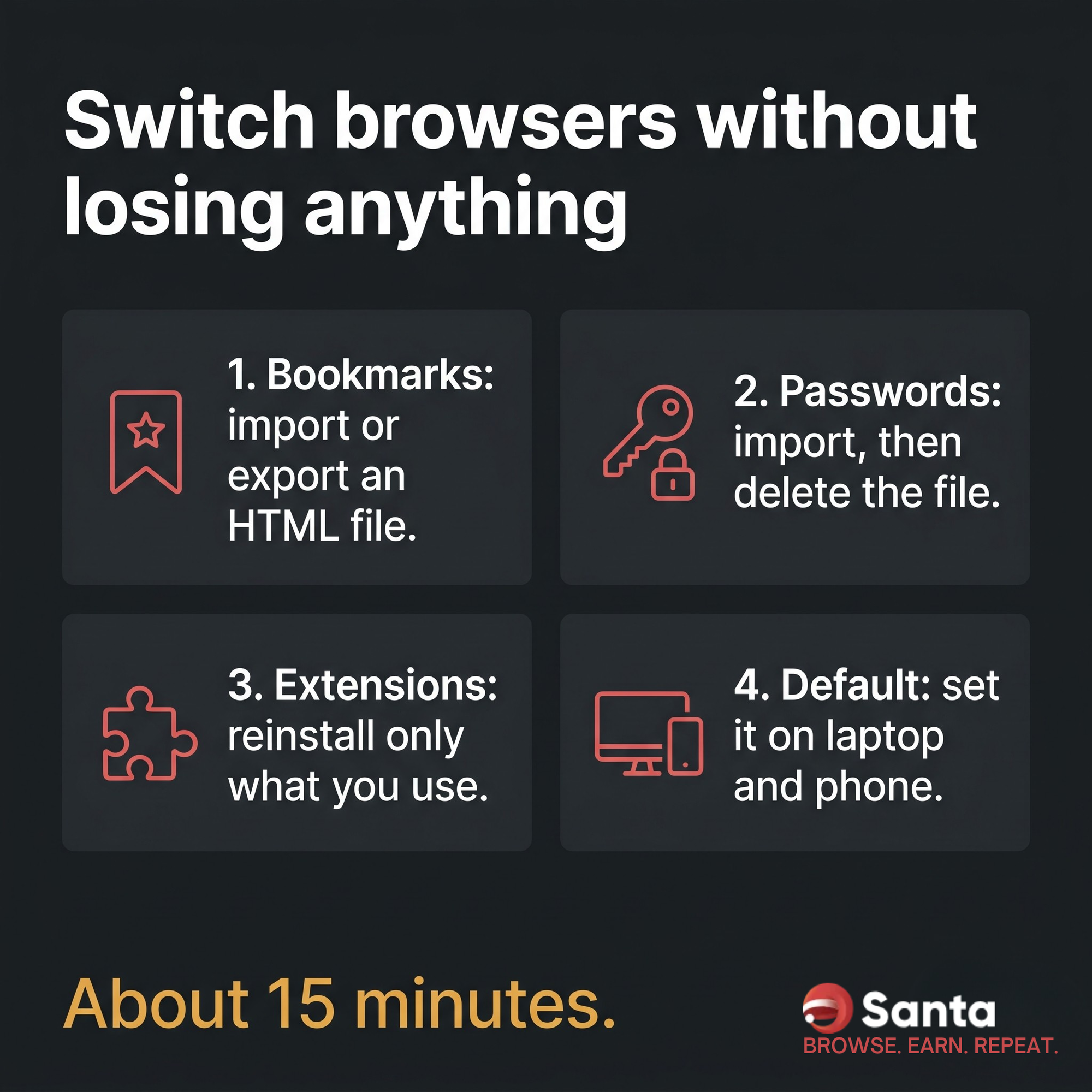
Here's the good news. You can switch browsers without losing any of it, and it takes about 15 minutes. This guide covers how to switch browsers safely, step by step, on desktop and phone.
Before You Start: A 2-Minute Checklist
Make a quick list of what you want to bring with you:
- Bookmarks (and your bookmark folders)
- Saved passwords and any passkeys
- Extensions you actually use
- Open tabs you don't want to lose. Right-click any tab and bookmark all of them into one folder first.
- Browsing history, if you care about it. Many import tools can bring it across.
Keep your old browser installed until you're finished. Some import tools pull data straight from it.
Step 1: Move Your Bookmarks
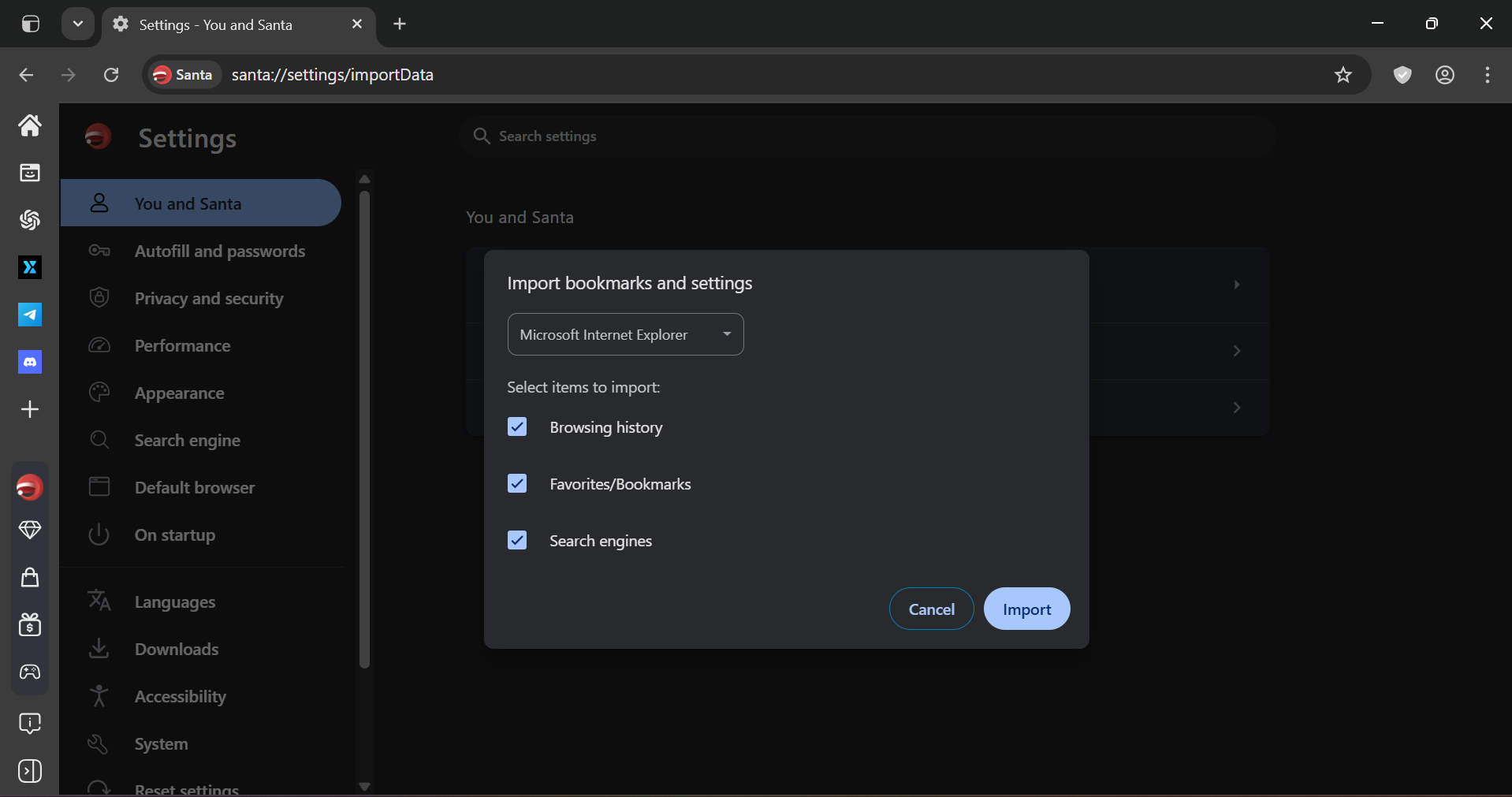
The easy way: use the new browser's import tool. Most browsers can copy bookmarks directly from another browser on the same computer. Look for "Import bookmarks and settings" or "Import browser data" in the new browser's menu or settings, pick your old browser, and choose what to bring.
The backup way: export an HTML file. If the direct import doesn't find your old browser, export your bookmarks to a file and import that file instead.
- Chrome: More menu (three dots) > Bookmarks and lists > Bookmark manager > More (three dots) > Export bookmarks.
- Firefox: Menu > Bookmarks > Manage bookmarks > Import and Backup > Export Bookmarks to HTML.
- Safari (Mac): File > Export Browsing Data to File, then choose bookmarks. Safari saves a .zip file.
- Edge: Favorites > More options (three dots) > Export favorites.
Then, in your new browser, choose the import option and select the HTML file.
Switching to Santa Browser? Its built-in import brings your bookmarks and saved passwords across from your old browser, so you may not need an export file at all.
Step 2: Move Your Passwords Safely
Passwords need a bit more care, because the file you export is the keys to your digital life. Here's how to transfer saved passwords without putting them at risk.
Option A: direct import. Many browsers can import saved passwords directly from another browser during the same import as your bookmarks. If yours offers it, use it. Nothing gets saved to a file.
Option B: export a CSV file. If you need a file, here's where to find the export option:
- Chrome: More menu > Passwords and autofill > Google Password Manager > Settings > Export passwords.
- Firefox: Menu > Passwords > three-dot menu > Export passwords.
- Safari (Mac): open the Passwords app and use the export option in the File menu.
- Edge: Settings and more > Passwords > More options > Export passwords.
Every one of these files is plain text. As Mozilla puts it, your passwords "will not be encrypted and will be in a readable form to anyone who can view this file." So follow four rules:
- Export on your own computer, never a shared one.
- Don't email, upload or message the file to yourself.
- Import it into the new browser right away.
- Delete the file, then empty your trash or recycle bin.
Option C: use a standalone password manager. If you keep your passwords in a password manager that works across browsers, switching is as simple as installing its extension in the new browser. If you switch browsers often, this is the least stressful setup.
What about passkeys? First, check where they're stored. If they live in a password manager you'll keep using, you may not need to move them at all. Moving passkeys from one provider to another is still new. Apple added a way to export them to other apps in iOS 26, and Google started rolling out import and export for its password manager in 2026.
Step 3: Bring Your Extensions (and Leave Some Behind)
Extensions don't come across in an export file. You reinstall them, which takes a minute each.
If your new browser is built on Chromium, it can usually run extensions from the Chrome Web Store. Microsoft Edge, for example, asks you to "Allow extensions from other stores" the first time, and most other Chromium-based browsers work the same way. Santa Browser is built on Chromium too, and it can install extensions from the Chrome Web Store on desktop.
Two things to know:
- Extension settings usually don't move. If an extension has its own export or backup option, use it before you switch.
- This is your chance to clean up. Extensions can see a lot of what you do online, and they can change hands or get hacked. In December 2024, attackers phished the developer of a popular extension and pushed out a malicious update. The same campaign hit more than 35 extensions used by about 2.6 million people.
Before you reinstall anything, ask three questions. Have I used it in the past month? Do I know who makes it? Does it need access to every website, or just one? Only bring back what passes. Fewer extensions also make your browser harder to single out. [INTERNAL LINK: What Is Browser Fingerprinting? /blog/what-is-browser-fingerprinting]
Step 4: Make It Your Default
Your new browser only becomes a habit when links open in it.
- Windows 11: Settings > Apps > Default apps, pick your browser, then select Set default.
- Mac: System Settings > Desktop & Dock > Default web browser.
- iPhone: Settings > Apps > Default Apps > Browser App. You'll need the latest version of iOS.
- Android: Settings > Apps > Default apps > Browser app. The exact names vary by phone maker.
Step 5: Give It a Week
Don't uninstall your old browser on day one. Use the new one for a week. When a site asks you to sign in, do it, and check that your saved password worked. If anything is missing, you can still import it.
After a week, if everything's there, sign out of the old browser's sync and remove it if you like.
What Doesn't Move (and What to Do About It)
- Logins: you'll need to sign in to sites again, because cookies stay with the old browser. Use the moment to turn on two-step sign-in for email, banking and social accounts.
- Payment cards: most browsers don't export card numbers, and that's a good thing. Add your cards again or pay with your phone's built-in payment app at checkout.
- Site permissions: camera, microphone and notification settings start fresh. Only allow them again when a site actually needs them.
- Extension settings: see Step 3.
Frequently Asked Questions
Will I lose my passwords if I switch browsers?
No, as long as you import them before you uninstall the old browser. Use the new browser's direct import if it has one. If not, export a CSV file, import it straight away, and delete the file.
Is it safe to export my passwords to a file?
It's safe if you're careful. Exported password files aren't encrypted, so anyone who opens the file can read every password. Do it on your own device, import immediately and delete the file, including from the trash.
Can I use Chrome extensions in another browser?
In most Chromium-based browsers, yes. Santa Browser, Microsoft Edge and most other Chromium-based browsers can install extensions from the Chrome Web Store on desktop. Firefox and Safari use their own extension stores, so you'll need to find their versions there.
Do I have to delete my old browser?
No. Many people keep it installed for a week or two, just in case. Once you've confirmed everything moved, sign out of its sync so your data isn't sitting in two places.
Where Santa Browser Fits
If you're switching because you want a browser that puts privacy and security first, Santa Browser is free, private and secure. It's built on Chromium and available on Windows, Mac, iPhone and Android. It has a built-in import, so you can bring your bookmarks and passwords across from your old browser, and it runs your Chrome Web Store extensions on desktop.
A built-in VPN that helps keep your connection private on public Wi-Fi, and a built-in AI, are both coming soon.