
Your Smart TV Is Watching You Back: How to Turn Off ACR on Every Major Brand
You watch your TV. There's a good chance your TV is also watching what you watch.
Most smart TVs sold today include a feature called automatic content recognition, or ACR. It identifies whatever is on your screen, whether it comes from a streaming app, an antenna, a cable box or a game console, and sends that information back to the TV maker or its partners.
You probably agreed to it without noticing. It's usually one of the boxes you tick to get through setup. The good news: it takes about five minutes to turn off ACR, and nothing important stops working. Here's what it is, and how to switch it off on every major brand.
What Is Automatic Content Recognition (ACR)?
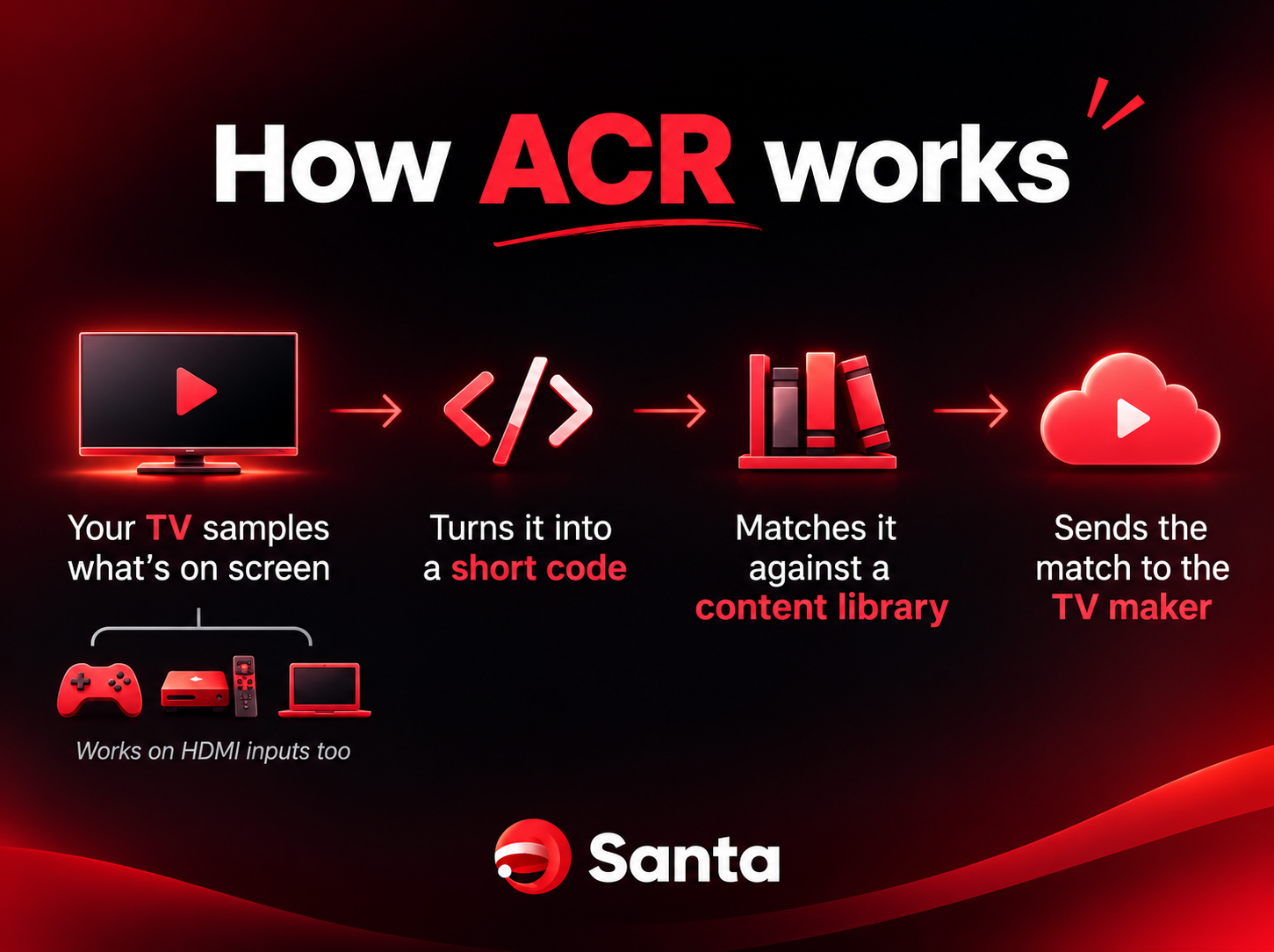
ACR works a bit like a song-recognition app, but for your TV screen. The TV regularly captures small samples of what's on screen, turns them into a short code, and matches that code against a huge library of shows, films and ads. Once there's a match, the TV knows what you're watching and when.
How often does it look? A 2024 study by researchers at UC Davis, University College London and Universidad Carlos III de Madrid looked at Samsung and LG TVs. Samsung's own documentation says its system captures frames every 500 milliseconds. LG's says every 10 milliseconds, with results sent off every 15 seconds.
Two findings from that study stand out:
- It works on almost anything you plug in. The researchers saw ACR activity both when watching regular TV and when using the TV as a screen over HDMI. So your game console, cable box, or a laptop mirrored to the TV can be part of it.
- Opting out works. When they turned ACR off, the TVs stopped talking to the ACR servers entirely.
Why You Might Want to Turn ACR Off
ACR data is mostly used to personalize recommendations and ads, and to measure what people watch. Some people are fine with that. Many aren't, once they know.
Your viewing history says a lot about you: your politics, your health worries, your kids' ages, when you're home and when you're not. And if you plug in a laptop to show photos or a work presentation on the big screen, that content goes through the TV too.
Regulators have started paying attention. In December 2025, the Texas Attorney General sued Samsung, LG, Sony, Hisense and TCL over how their TVs collect viewing data. Samsung settled in February 2026 and LG in May 2026. Both agreed to get clear consent from Texans before collecting this data. The cases against the other three were still going at the time of writing.
The researchers behind the 2024 study summed up the problem neatly. As UC Davis professor Zubair Shafiq put it: "It's very easy to opt in, but to opt out, it's an extensive process."
So here's the extensive process, made short.
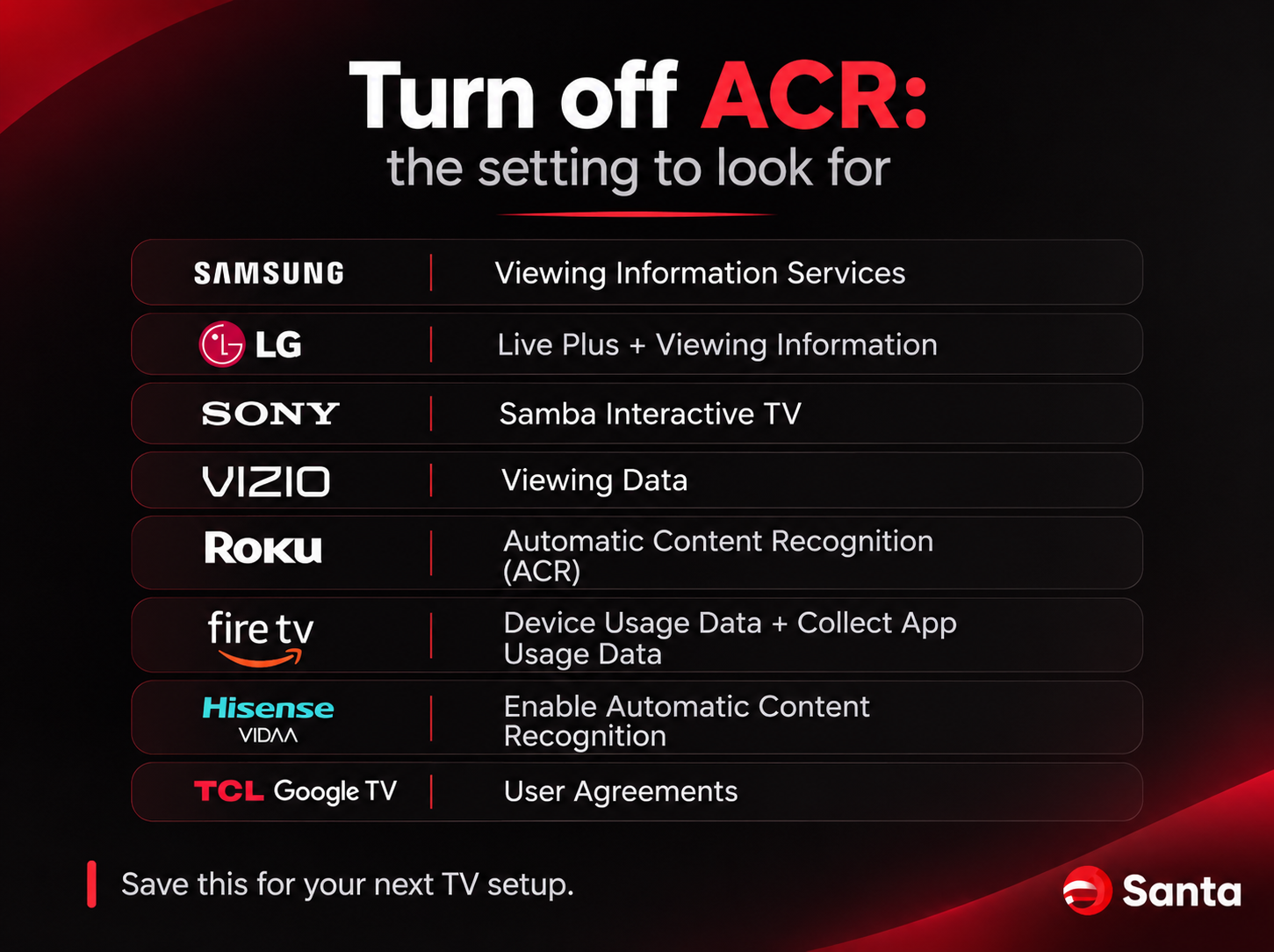
How to Turn Off ACR, Brand by Brand
Menus change between model years and regions, so the names on your TV may be slightly different. If you can't find a setting, look under Privacy, Terms or User Agreements.
Samsung
- Go to Settings > All Settings > General & Privacy > Terms & Privacy (older models may say Terms & Policy).
- Turn off Viewing Information Services. This is Samsung's ACR.
- While you're there, turn off Interest-Based Advertisements.
LG
- Go to Settings > All Settings > General > System > Additional Settings (older models skip the System step).
- Turn off Live Plus. This is LG's ACR.
- Then go to Settings > All Settings > Support > Privacy & Terms > User Agreements and turn off Viewing Information. You can also switch off Voice Information and Interest-Based Cross-Device Advertising here.
Sony (Google TV and Android TV)
- Go to Settings > All Settings > Privacy (on some models, System Preferences).
- Open Samba Interactive TV and turn it off. Sony says this stops the TV collecting your viewing history.
- If a pop-up asks you to set it up, choose Disagree and Disable.
Vizio
- Go to All Settings > Privacy & Legal (older models: Admin & Privacy).
- Turn off Viewing Data. Vizio says this also deletes your past viewing logs and "does not affect the performance of the TV."
Roku TVs (TCL, Hisense, Sharp and other Roku-powered sets)
- Go to Settings > Privacy > Smart TV Experience.
- Untick Automatic Content Recognition (ACR). Older Roku TVs call this Use Info from TV Inputs.
- Then go to Settings > Privacy > Advertising and turn off Personalized Ads.
Amazon Fire TV (Fire TV smart TVs and Omni)
- Go to Settings > Preferences > Privacy Settings.
- Turn off Device Usage Data, Collect App Usage Data and Interest-based Ads.
- On Fire TV smart TVs with an antenna, also turn off the over-the-air viewing data option in the same menu.
Hisense (VIDAA)
- Go to Settings > Advanced Settings > Enhanced Viewing Settings (names vary by firmware).
- Turn off Enable Automatic Content Recognition, then confirm.
- Also turn off Enable Personalized Ads and, if you like, Enable Content Recommendation.
TCL Google TV and other Google TV sets
- Go to Settings > Privacy > User Agreements and withdraw consent for viewing information or content recognition.
- Opt out of the User Experience Improvement Program.
- Check Settings > Privacy > Ads to reset or delete your advertising ID.
What Happens When You Turn ACR Off?
For most people, nothing you'll notice. You still get all your apps, channels and inputs. A few things to know:
- Recommendations get less specific. Home-screen suggestions may feel less personal.
- Some extra features need it. On Roku, for example, "More Ways to Watch" suggestions rely on ACR.
- Past data may not disappear. Vizio deletes old viewing logs when you switch off, but some makers keep what was already collected. Check the brand's privacy page if this matters to you.
- You'll still see ads. They'll just be less personalized.
Three More Two-Minute Fixes
- Check again after big updates. Major software updates and factory resets can bring back the setup screens. If you see "Agree to all" again, slow down.
- Review the microphone. If your TV or remote has voice control, check the voice and microphone settings and switch off anything you don't use.
- Consider keeping the TV offline. If you only watch through a streaming stick or console, you can leave the TV itself disconnected from Wi-Fi. A TV that isn't online can't send viewing data anywhere.
Your TV Isn't the Only Screen
ACR is a good reminder of a simple rule: every connected device ships with settings, and the defaults aren't always chosen with you in mind. Your TV, your phone and your browser all deserve five minutes of attention. https://blog.santabrowser.com/30-tiny-privacy-and-security-habits-one-a-day-for-a-safer-month/
Frequently Asked Questions
Is ACR the same as my TV listening to me?
No. ACR identifies what's on your screen, mostly from the picture. Voice features that use your TV's or remote's microphone are separate settings, so check those too.
Will turning off ACR stop ads on my TV?
No. You'll still see ads on the home screen and in apps. They'll just be based less on what you watch.
Does a VPN stop ACR?
No. ACR happens inside your TV's own software, before anything leaves your home network. The only reliable way to stop it is to switch it off in the TV's settings, or keep the TV offline.
Does turning off ACR void my warranty or break apps?
No. It's a privacy setting the manufacturer gives you. Your apps and inputs keep working, though some personalized recommendations may stop.
Where Santa Browser Fits
Five minutes in your TV's settings is a solid win. Your browser deserves the same care, because it's the screen you use for banking, shopping and everything personal.
Santa Browser is free, private and secure, built on Chromium and available on Windows, Mac, iPhone and Android. It brings your bookmarks and passwords across from your old browser, and a built-in VPN that helps keep your connection private on public Wi-Fi, plus a built-in AI, are both coming soon.
And it gives a little back.